
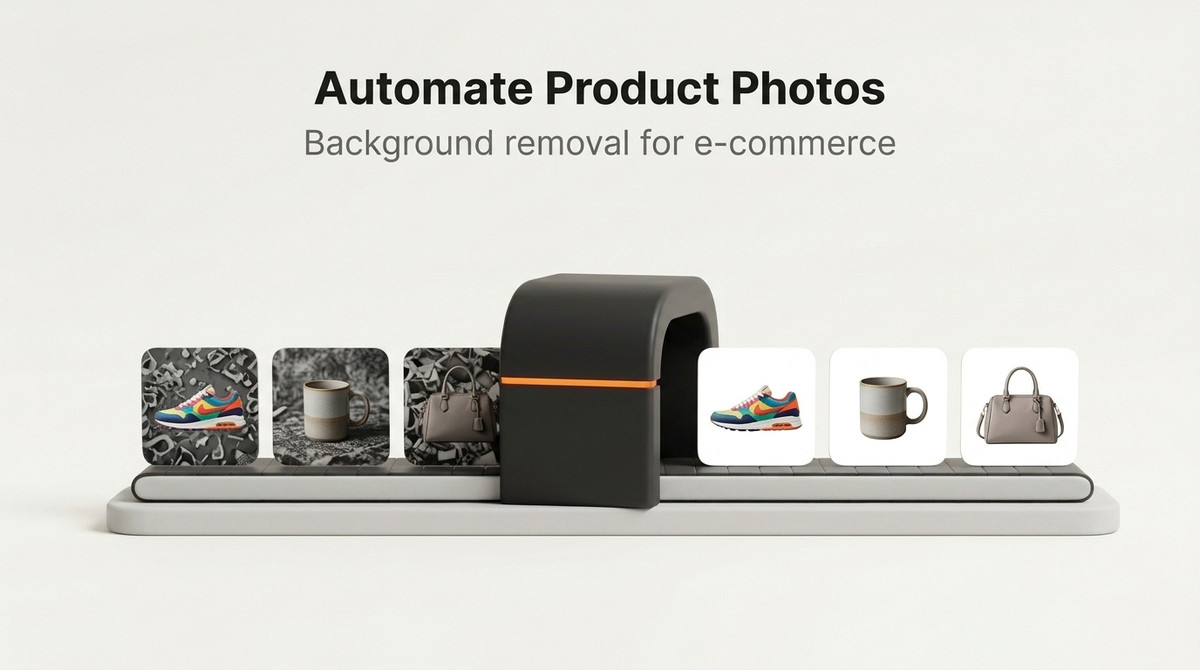
E-commerce marketplaces require consistent product presentation. White or transparent backgrounds are often mandatory, but manual editing can delay listing workflows.
Automation architecture
- Capture product photo
- Upload to storage
- Trigger API background removal
- Store final PNG and sync to CMS/marketplace
Why API automation wins
- Faster listing turnaround
- Consistent visual quality
- Predictable cost per image
The real cost of manual background removal
At $1–3 per image outsourced to a freelance retoucher, a catalog of 500 SKUs with 4 images each costs $2,000–6,000 before a single product goes live. In-house editing at 5 minutes per image is 167 hours of work for the same catalog. Neither approach scales. When a new product line launches or seasonal inventory changes, the entire cost resets.
Setting up the automation pipeline
The simplest production setup uses three components: a watched folder (local, Dropbox, or S3), a processing script that calls the API, and an output folder where cleaned images land. Your existing CMS or marketplace upload tool picks up from the output folder. No change to the existing publishing workflow.
import requests
import time
from pathlib import Path

API_KEY = "YOUR_API_KEY"
INPUT_DIR = Path("raw_products")
OUTPUT_DIR = Path("processed_products")
OUTPUT_DIR.mkdir(exist_ok=True)

def process_image(path: Path, max_attempts: int = 3) -> bool:
    for attempt in range(max_attempts):
        with open(path, "rb") as f:
            response = requests.post(
                "https://fapihub.com/v2/rembg/",
                headers={"ApiKey": API_KEY},
                files={"image": f},
                timeout=30,
            )
        if response.status_code == 200:
            out = OUTPUT_DIR / (path.stem + "_nobg.png")
            out.write_bytes(response.content)
            print(f"  ✓ {path.name}")
            return True
        if response.status_code != 429:
            break
        wait = int(response.headers.get("Retry-After", 5))
        print(f"  Rate limit hit, waiting {wait}s...")
        time.sleep(wait)
    print(f"  ✗ {path.name} — HTTP {response.status_code}")
    return False

images = list(INPUT_DIR.glob("*.jpg")) + list(INPUT_DIR.glob("*.png"))
print(f"Processing {len(images)} product images...")
results = [process_image(img) for img in images]
print(f"\nComplete: {sum(results)}/{len(images)} succeeded")
Getting Amazon-ready white backgrounds
Amazon requires pure white (#FFFFFF) main product image backgrounds. Instead of the transparent removal endpoint, use the color endpoint with bgcolor set to (255, 255, 255, 255):
with open("product.jpg", "rb") as image_file:
    response = requests.post(
        "https://fapihub.com/v2/rembg/color/",
        headers={"ApiKey": API_KEY},
        files={"image": image_file},
        data={"bgcolor": "(255, 255, 255, 255)"},
        timeout=30,
    )
Choosing the right output for each channel
Most catalogs end up needing more than one version of each photo. Rather than removing the background once and compositing everything yourself, request the finished format directly. Each call is one request at the same per-request price.
| Output | Endpoint | Typical use |
|---|---|---|
| Transparent PNG | /v2/rembg/ | Storefront themes, collection grids, compositing onto banners |
| Solid white or brand color | /v2/rembg/color/ | Marketplace main images, catalog feeds, print |
| Drop shadow | /v2/rembg/shadow/ | Product pages where floating cutouts look flat |
| Gradient | /v2/rembg/gradient/ | Promotional tiles and seasonal campaigns |
| Blurred original background | /v2/rembg/blur/ | Lifestyle shots where you want the subject to stand out but keep context |
Many marketplaces require a pure white background for the main image, while secondary images can often show context. Rules change, so check each marketplace's current image requirements before you automate. The transparent vs white background guide covers the trade-offs in more detail.
Adding a consistent drop shadow
A subtle shadow makes a cutout look like it is sitting on a surface. Use the same settings for every product so your grid looks uniform:
with open("product.jpg", "rb") as image_file:
    response = requests.post(
        "https://fapihub.com/v2/rembg/shadow/",
        headers={"ApiKey": API_KEY},
        files={"image": image_file},
        data={
            "shadow_color": "(0, 0, 0, 150)",
            "offset": "(10, 10)",
            "blur_radius": 15,
        },
        timeout=30,
    )
Store these values in one config file. If the design team later wants a softer shadow, you change one place and rerun the catalog. More options are in the product shadow guide.
Normalizing framing after removal
Background removal makes backgrounds consistent, but products still sit at different sizes and positions depending on how each photo was shot. A short Pillow step after the API call crops to the product, adds even padding, and centers it on a square canvas, so every image in a grid has the same visual weight.
from io import BytesIO
from PIL import Image


def frame_product(png_bytes: bytes, size: int = 2000, padding: float = 0.08) -> Image.Image:
    img = Image.open(BytesIO(png_bytes)).convert("RGBA")
    bbox = img.getchannel("A").getbbox()  # tight box around non-transparent pixels
    if bbox:
        img = img.crop(bbox)

    inner = int(size * (1 - 2 * padding))
    img.thumbnail((inner, inner), Image.LANCZOS)

    canvas = Image.new("RGBA", (size, size), (0, 0, 0, 0))
    canvas.paste(img, ((size - img.width) // 2, (size - img.height) // 2), img)
    return canvas


framed = frame_product(response.content)
framed.save("product_framed.png")
Run this on the transparent output from /v2/rembg/. If you need a white version for a marketplace afterward, either flatten the framed PNG onto white with Pillow or request the white background from the color endpoint and frame that. Pick one approach and use it everywhere.
Naming, storage, and reruns
The pipeline script above works well for a one-off batch. For a catalog you maintain over time, a few conventions prevent most problems:
- Name outputs by SKU and variant. For example
SKU123_01_transparent.pngandSKU123_01_white.png. Your CMS import can then match files to products without manual mapping. - Always keep the originals. If you change the shadow settings, framing, or model later, you can regenerate everything from the source photos.
- Skip work already done. Store a hash of each original's bytes plus the endpoint and parameters used. If the hash matches, reuse the stored result instead of spending another request.
- Separate failed images. Move files that return 400
invalid_imageinto a review folder instead of retrying them. 4xx errors count toward your quota, while 5xx errors never do, so retrying server errors is safe. - Check inputs first. The API accepts JPEG, PNG, WebP, BMP, and GIF up to 10 MB. Some camera exports are larger, so resize oversized originals before upload.
Quality control before publishing
Automation removes the repetitive work, not the need to look at results. A light review process catches the images that need attention:
- Spot-check every batch. Review a sample from each new batch, and every image for hero products.
- Watch the hard categories. Glassware, jewelry chains, mesh fabrics, fur, and products that are close in color to the backdrop are where edges most often need a second look.
- Try a different model. If a result looks wrong, rerun it with
model=auroraormodel=ghoston/v2/rembg/. Keep whichever model looks best for that product category and record it in your config. - Use masks for manual fixes. The
/v2/rembg/mask/endpoint returns a black and white subject mask. Retouchers can adjust the mask in an editor instead of starting from scratch. - Improve the source. Even lighting, a plain backdrop, and a sharp focus on the product help any segmentation model. The quality guide has more shooting tips.
Pricing at e-commerce scale
On FAPIhub, 50,000 images per month fits in the Ultra plan at $79, which includes up to 52,000 requests. The same volume on PhotoRoom Basic costs $1,000, and on remove.bg it costs $3,950. For a business that treats product photography as a recurring operational cost, the difference compounds every month.
| Monthly volume | FAPIhub | PhotoRoom | remove.bg |
|---|---|---|---|
| 1,000 images | $10 (Per Usage, one-time) | $20 | $189 |
| 7,000 images | $15 (Pro) | $140 | $789 |
| 50,000 images | $79 (Ultra) | $1,000 | $3,950 |
Pricing impact
At 50,000 images, small per-image differences become material. A lower-cost API directly improves margin on each SKU published.
With FAPIhub at $0.00214/image on the Pro plan and less on higher plans, teams can scale image operations without committing to expensive annual plans.
Frequently asked questions
Can this work with Shopify or WooCommerce?
Yes. The API only needs the image file, so it fits any platform that lets you export or upload images. Process images before import, or run a script that pulls product images, processes them, and uploads the results. The Shopify guide walks through one approach.
Should I store transparent PNGs or white-background images?
Store the transparent PNG as your master copy and generate white or colored versions per channel. Transparent files can be placed on any background later, while a white JPEG cannot easily be turned back into a cutout.
How do I get images ready for Amazon?
Use the color endpoint with bgcolor set to (255, 255, 255, 255), as shown above, then check Amazon's current image requirements for size and framing. The Amazon white background guide covers the details.
Which plan fits a growing catalog?
Count requests, not products: each photo times each variant you generate. Pro covers 7,500 requests a month for $15, Ultra 52,000 for $79, and Mega 255,000 for $199. For a one-time catalog cleanup, per-usage packs at $10 per 1,000 requests avoid a subscription. More e-commerce workflows are on the e-commerce use case page.