
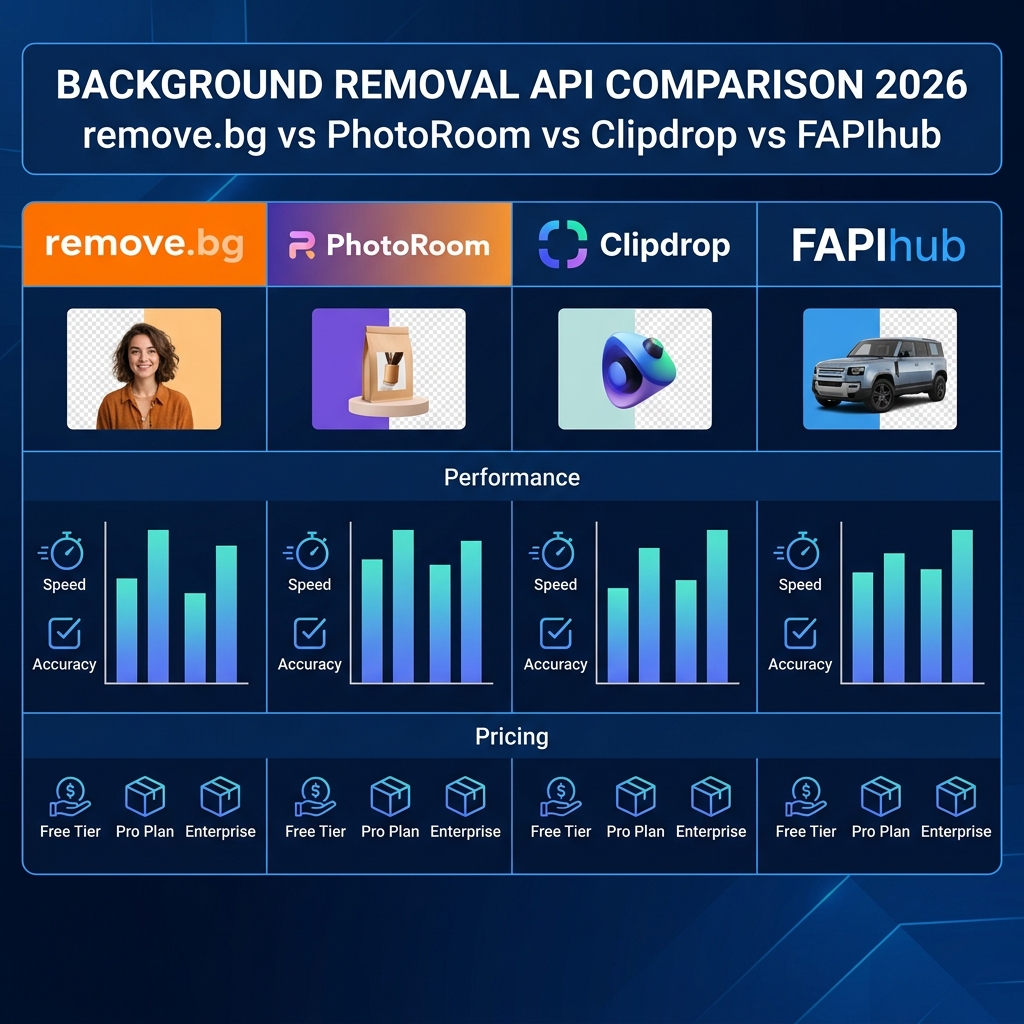
cURL is the fastest way to verify an image API before adding an SDK or application code. This quickstart sends a local image to FAPIhub and writes the transparent PNG response to disk.
Make the first request
curl -X POST https://fapihub.com/v2/rembg/ \
  -H "ApiKey: YOUR_API_KEY" \
  -F "image=@product.jpg" \
  --output product-no-background.png
A successful response is binary image data, so use --output instead of printing the response in your terminal.
Select a model
When an image needs a different segmentation behavior, pass the model as another multipart field. Start with the default model, then compare results on your own image set before choosing a production default.
curl -X POST https://fapihub.com/v2/rembg/ \
  -H "ApiKey: YOUR_API_KEY" \
  -F "image=@portrait.jpg" \
  -F "model=aurora" \
  --output portrait-cutout.png
Keep errors visible
During testing, add --fail-with-body and write headers to a separate file. This makes authentication, validation, and rate-limit errors easier to diagnose without corrupting the output file.
curl --fail-with-body -X POST https://fapihub.com/v2/rembg/ \
  -H "ApiKey: $FAPIHUB_API_KEY" \
  -F "image=@input.jpg" \
  -D response-headers.txt \
  --output output.png
Use it in a shell loop
For a small local batch, process files one at a time and preserve the original basename. For larger workloads, use a queue and bounded concurrency as described in our production pipeline guide.
mkdir -p processed
for image in raw/*.{jpg,jpeg,png,webp}; do
  [ -f "$image" ] || continue
  name="$(basename "${image%.*}")"
  curl --fail-with-body -sS -X POST https://fapihub.com/v2/rembg/ \
    -H "ApiKey: $FAPIHUB_API_KEY" \
    -F "image=@$image" \
    --output "processed/$name.png"
done